
VPN
Set up a WireGuard VPN on Debian 13 with a web UI (wg-easy)
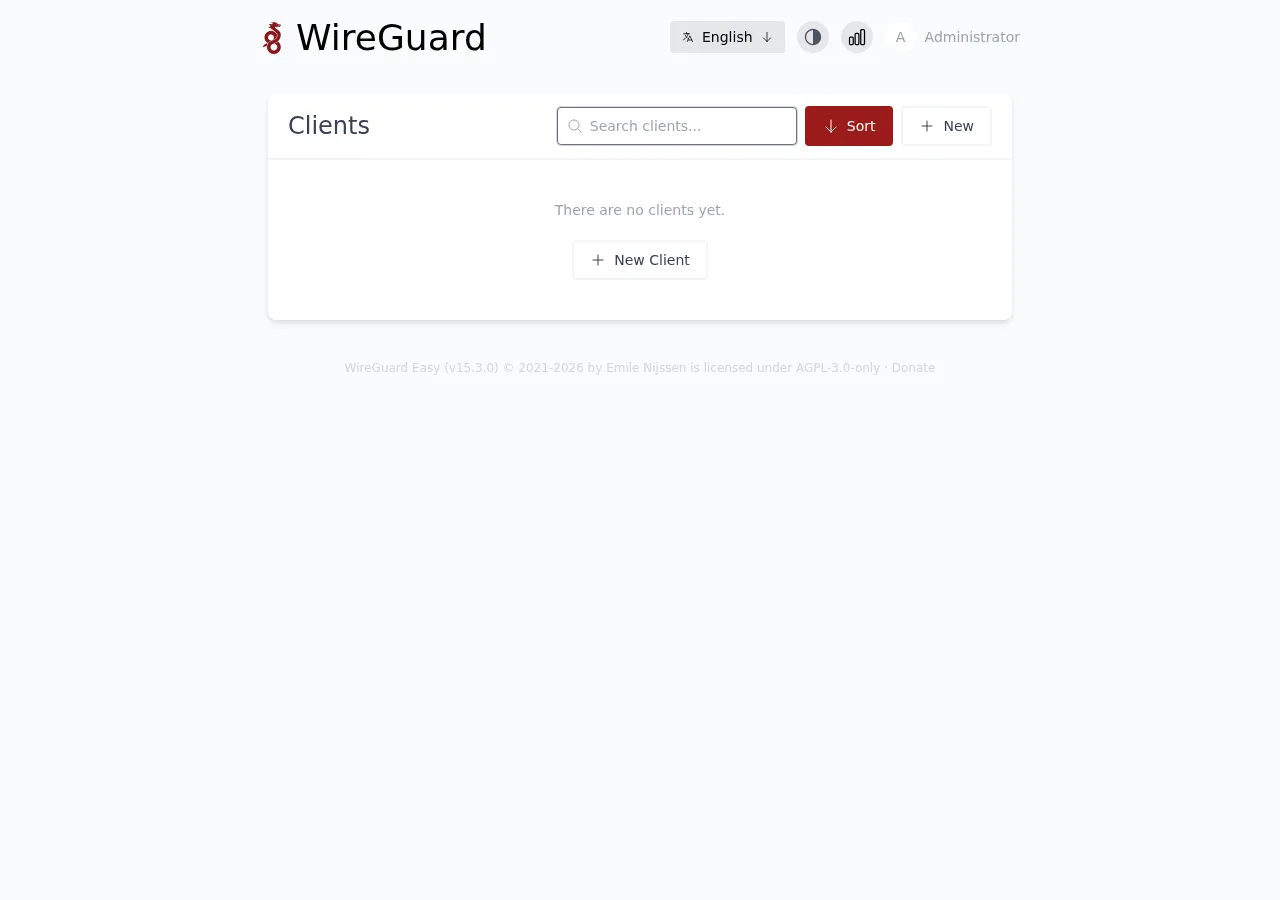
WireGuard is fast and modern, but its config files scare people off. wg-easy fixes that: it wraps WireGuard in a clean web panel where you add a user, scan a QR code, and you are connected. This guide sets it up on a fresh Debian 13 (Trixie) server, from an empty box to a working tunnel.
Everything below was run on a plain Debian 13 VPS. Start to finish, it takes about ten minutes.
What you need
- A server running Debian 13 with a public IP and root (or sudo) access. A small VPS is plenty.
- The ability to open a UDP port in your firewall or provider panel.
- A phone or laptop to test the connection.
Step 1: Update the system and install Docker
wg-easy runs as a single container, so Docker is the only dependency. Update the box first, then use Docker’s official install script.
apt update && apt -y upgrade
apt install -y curl ca-certificates
curl -fsSL https://get.docker.com | sh
Check that it came up:
docker --version
systemctl is-active docker
You should see a Docker version and active.
Step 2: Deploy wg-easy
Grab the official Compose file into its own directory. Pin the major version (15) rather than latest, so an unattended update never breaks your setup with a new major release.
mkdir -p /etc/docker/containers/wg-easy
curl -o /etc/docker/containers/wg-easy/docker-compose.yml \
  https://raw.githubusercontent.com/wg-easy/wg-easy/master/docker-compose.yml
The file already publishes the two ports you need: 51820/udp for the tunnel and 51821/tcp for the panel.
One decision before you start it. The panel refuses to load its first-run setup over plain HTTP unless you tell it you know what you are doing. For a quick test against the server’s IP, enable INSECURE. For anything you keep, skip this and use a domain with the built-in reverse proxy (see the last section). To take the quick path, edit the compose file and set the environment block to:
    environment:
      - PORT=51821
      - HOST=0.0.0.0
      - INSECURE=true
Then bring it up:
cd /etc/docker/containers/wg-easy
docker compose up -d
Confirm the container is healthy:
docker psStep 3: Open the firewall
Debian 13 ships without a firewall running, so if you have not added one, the ports are already open. If you use ufw, allow the tunnel port:
ufw allow 51820/udpThe WireGuard port (UDP 51820) needs to reach the server for the VPN to work. If your provider has an edge firewall, allow it there too. On our VPS plans there is nothing in the way by default.
Step 4: Run the browser setup
Open http://YOUR_SERVER_IP:51821 in a browser. wg-easy walks you through a short wizard.
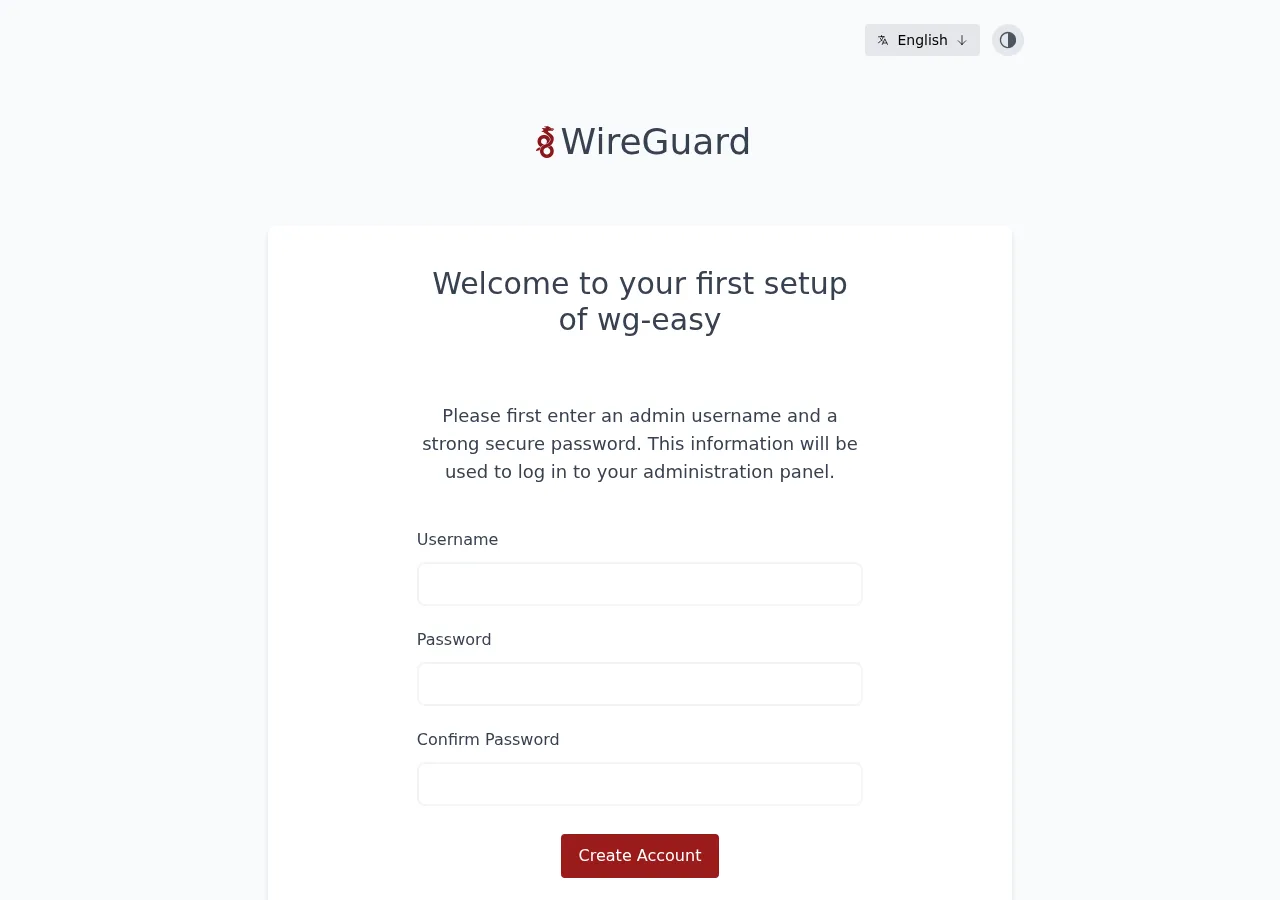
First it asks you to create the admin account. Pick a strong password. This is the login for your whole VPN panel.
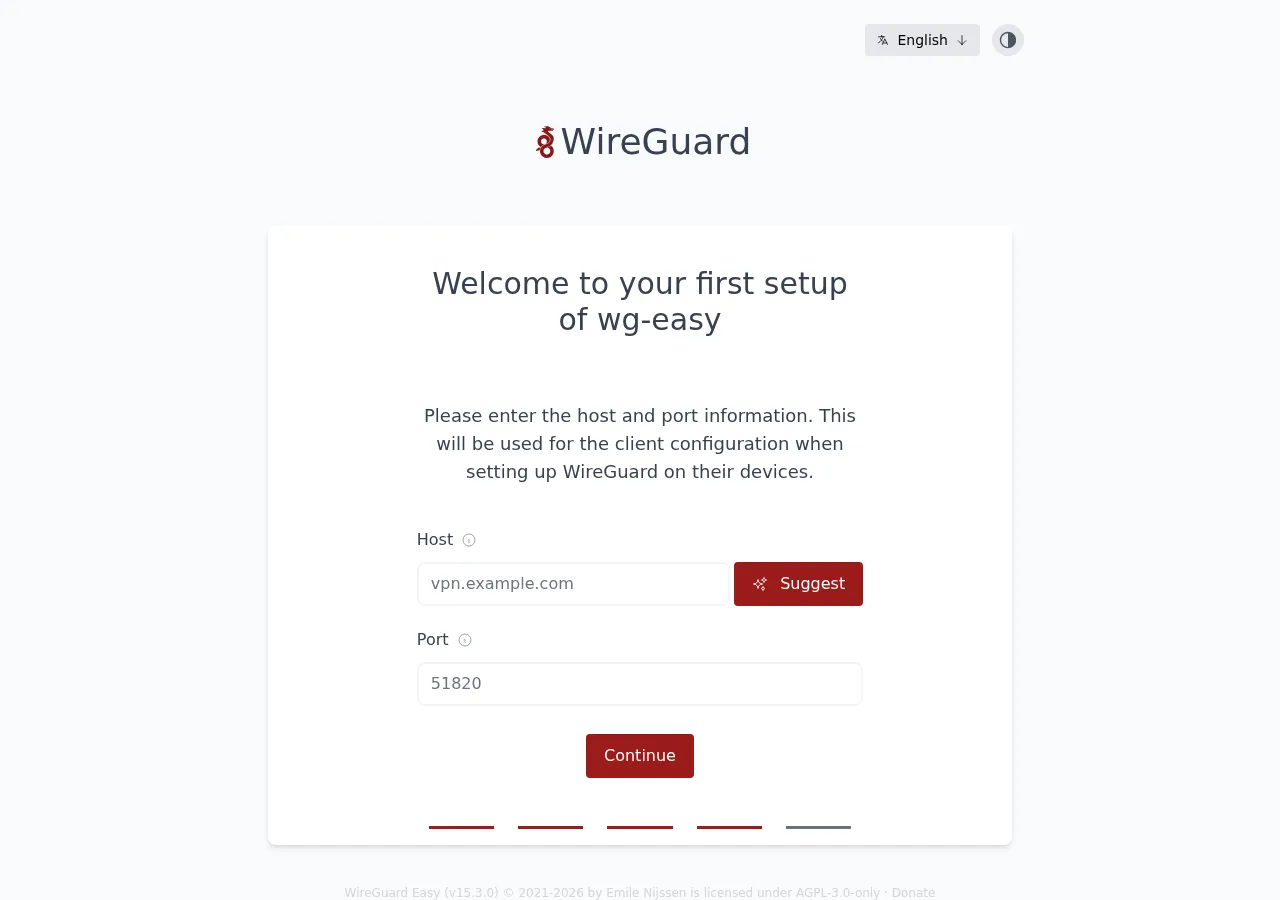
Next it confirms the public host that clients will connect to. On a VPS this is your server’s public IP or a domain that points to it. Getting this right matters, because it is baked into every client config.
Finish the wizard and you land on the dashboard. Empty for now.
Step 5: Add a user and connect
Click New Client, give it a name you will recognise later (a device or a person), and optionally set an expiry date.
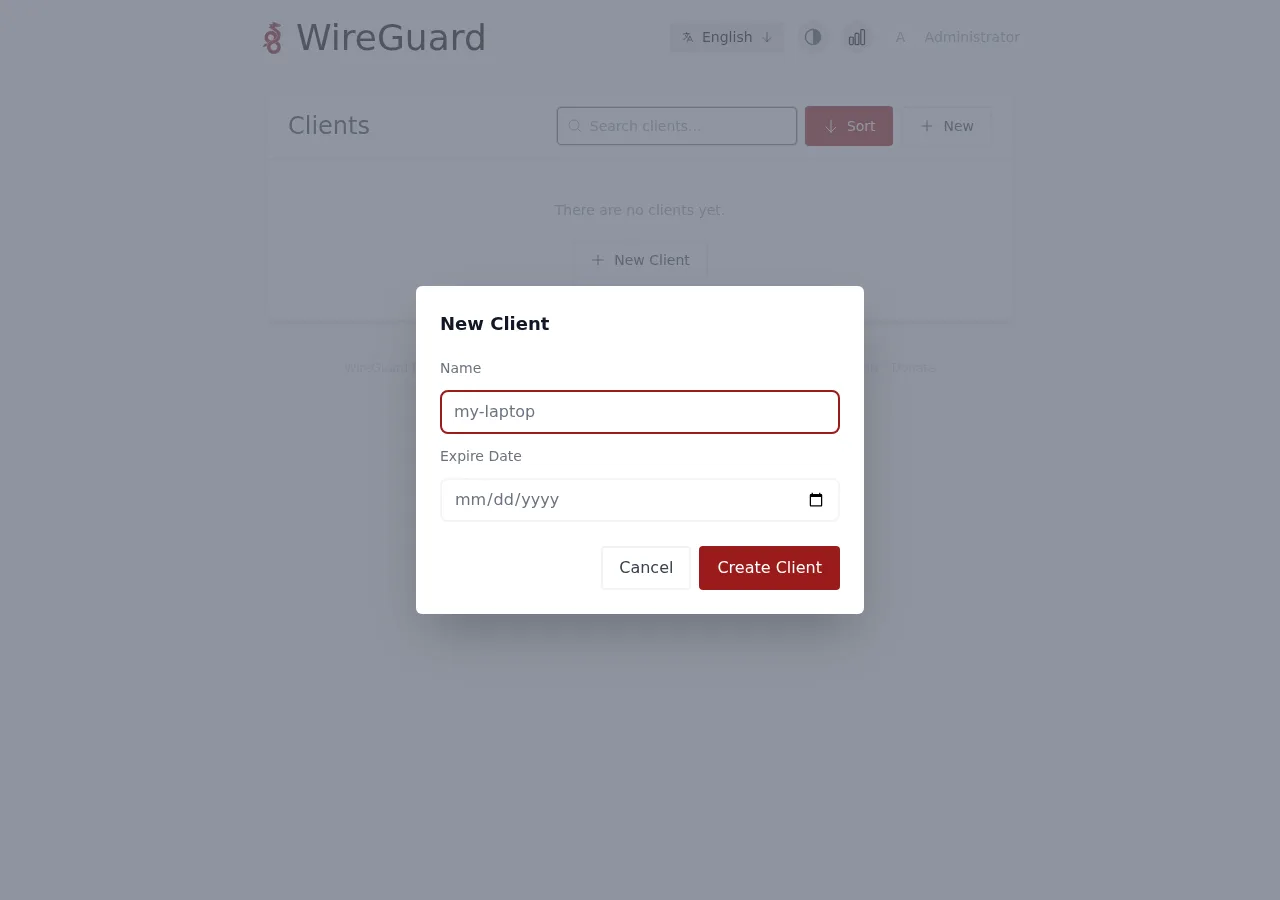
The client appears in the list right away. Open its QR code, and on a phone open the official WireGuard app, tap the plus button, and scan. On a desktop, download the .conf file instead and import it into the WireGuard client.
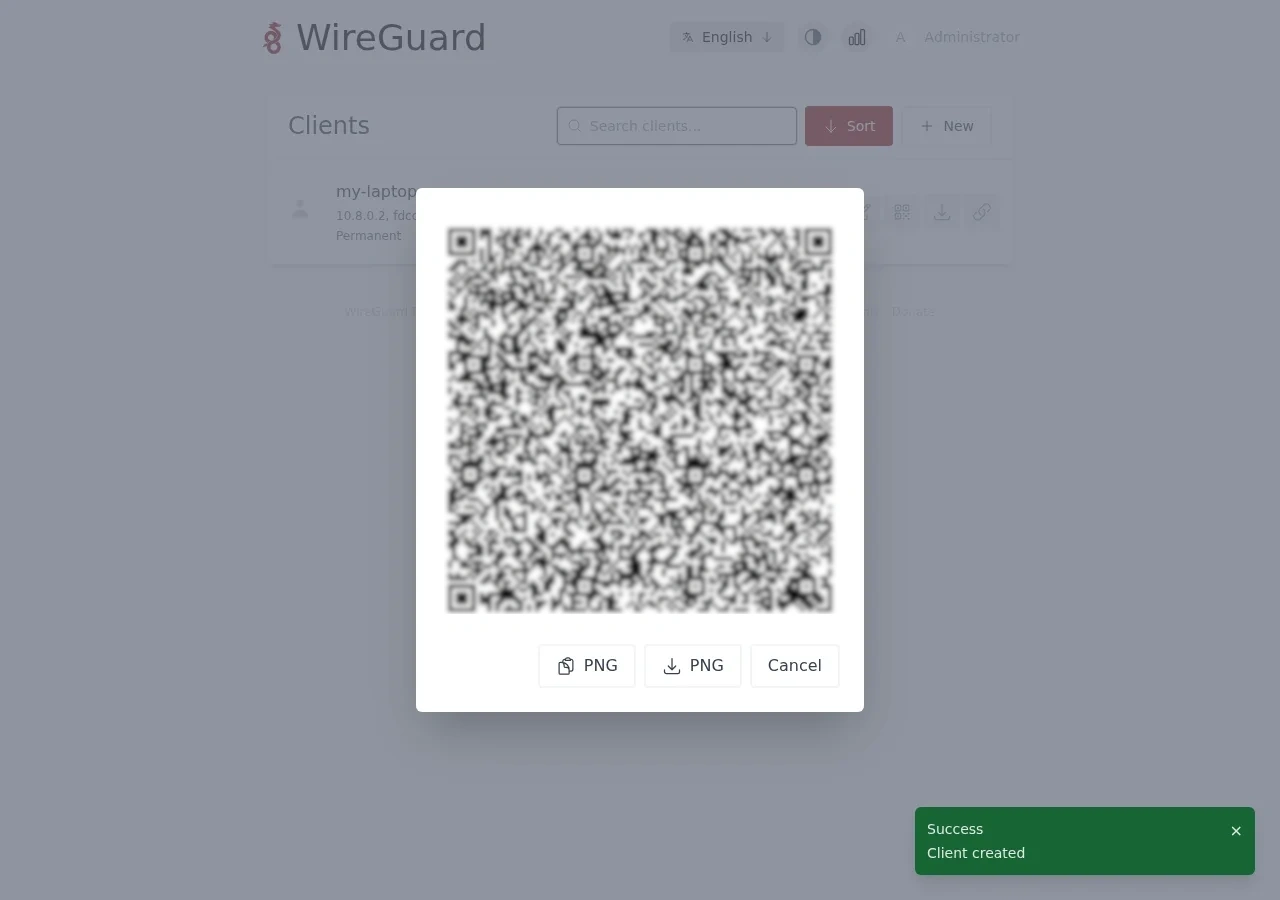
That is the whole loop. Every new person or device is one click and one scan. To cut someone off, toggle their client off or delete it, and their access is gone on the next handshake.
Step 6: Take it to production
The INSECURE=true shortcut is fine while you test from your own IP, but do not leave an admin panel exposed over plain HTTP. For a real deployment:
- Point a domain (say
vpn.example.com) at the server. - Remove
INSECURE=trueand use the built-in reverse proxy. wg-easy ships example configs for Caddy and Traefik that terminate HTTPS automatically with a free certificate. - Keep the panel port (51821) closed at the edge and reach it only through the proxy on 443.
To update later, pull and restart:
cd /etc/docker/containers/wg-easy
docker compose pull && docker compose up -d
The short version
# install docker
apt update && apt install -y curl ca-certificates
curl -fsSL https://get.docker.com | sh

# deploy wg-easy
mkdir -p /etc/docker/containers/wg-easy
curl -o /etc/docker/containers/wg-easy/docker-compose.yml \
  https://raw.githubusercontent.com/wg-easy/wg-easy/master/docker-compose.yml
# set INSECURE=true for an IP-only test, or use a reverse proxy for production
cd /etc/docker/containers/wg-easy && docker compose up -d

# open the tunnel port, then finish setup at http://SERVER_IP:51821
ufw allow 51820/udp
A WireGuard box barely notices the load, so it runs happily on a small VPS. If you want low latency and a stable endpoint in Europe, our NVMe VPS nodes in the Frankfurt metro are a good home for it, and they deploy in under a minute.
Frequently asked questions
Do I need to know WireGuard config files to use wg-easy?
No. wg-easy generates the server and client configs for you and shows each client as a QR code or a downloadable .conf file. You only touch the command line to install it.
Is the wg-easy web panel safe to expose on the internet?
The VPN itself (UDP 51820) is fine to expose. The admin panel on port 51821 should sit behind HTTPS. For a real deployment, point a domain at the server and use the built-in Caddy or Traefik reverse proxy instead of the INSECURE=true shortcut used here for a quick IP-only test.
How much server does a WireGuard VPN need?
Very little. WireGuard is light on CPU, so the smallest VPS handles a handful of users comfortably. Network quality and a stable public IP matter more than cores or RAM.
Which port does WireGuard use?
UDP 51820 by default for the tunnel, and TCP 51821 for the wg-easy web panel. Both are configurable in the compose file if you need different ones.
Related guides
Self-Hosting
Build a private seedbox on Debian 13: qBittorrent, Sonarr, Radarr, behind a VPN kill-switch
Advanced · 30 min
Networking
Port forwarding behind CGNAT (Starlink, 4G, 5G) with WireGuard and a VPS
Intermediate · 20 min
Game Servers
Run a Minecraft server on Debian 13 with PaperMC (systemd, hardened, backups)
Intermediate · 20 min